Stop fighting your software—learn the workflow that lets you draw faster and cleaner.
Build a professional digital art workflow from sketch to polish using modern tools, shortcuts, and layer management techniques that working illustrators actually use.
Most people learning digital art waste hours backtracking, fixing layers, or hunting for tools because nobody teaches workflow—just techniques. This quest changes that. You'll set up a canvas template with proper resolution and color profiles, create a custom brush set optimized for your style, and practice the layer-stacking method that professional illustrators use to keep files organized and editable. By the end, you'll have keyboard shortcuts mapped to your dominant hand, reference boards loaded in a second monitor or tablet, and a reusable file structure that works for everything from character sketches to full illustrations. The difference between hobbyist and professional digital art isn't talent—it's efficiency. You'll learn non-destructive editing with clipping masks and adjustment layers, so you can change colors or lighting without starting over. You'll practice the 'rough-refine-polish' method with separate passes, keeping early sketches intact while you tighten details. Most importantly, you'll build muscle memory for the shortcuts and gestures that let you stay in flow instead of fumbling through menus. This isn't about learning one more brush pack—it's about structuring your process so every session moves faster than the last.
Top gear to make this quest great.

Essential for natural line variation and brush control—mouse drawing feels robotic and slows you down significantly. The pressure sensitivity lets you vary line weight intuitively, which is how professionals get expressive strokes without constantly adjusting brush size settings.

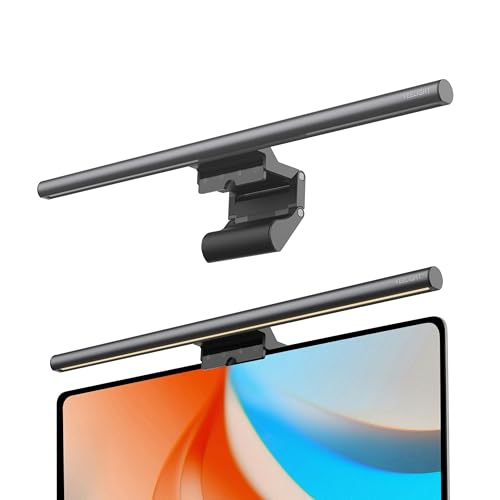
Eliminates eye strain during long sessions by providing even lighting on your reference materials and keyboard without reflecting on your screen. Serious quality-of-life upgrade for anyone working 2+ hour sessions—reduces headaches and lets you match colors more accurately.

Lets you draw at a natural wrist angle instead of flat on the desk, reducing strain and improving line control. The ergonomic difference is massive for longer sessions—your shoulder and wrist will thank you after hour two.
As an Amazon Associate I earn from qualifying purchases. Prices may change.
Set up your workspace: Configure a canvas template at 300 DPI with 3000x3000px dimensions, RGB color mode for screen or CMYK for print. Position your LISEN tablet stand with your reference device (fits 4"-13" devices like iPad or phone) at eye level using the adjustable clamps—tighten the knob to reinforce stability for a secure, wobble-free setup. Open Pinterest, PureRef, or ArtStation on the mounted device so you can glance at references without switching apps.
Configure your lighting and drawing tablet: Mount the YEELIGHT Monitor Light Bar above your screen and adjust the color temperature to 6500K (cool white) for initial sketching and linework, or 2700K (warm) for painting and color work—use the long-press stepless dimming to find your ideal brightness level that eliminates screen glare without causing reflections. Connect your XPPen Deco 640 and test the 16384 pressure levels by making soft-to-hard strokes; familiarize yourself with the 60° tilt support for natural shading variations.
Build your core brush set: Test 8-10 brushes from free packs (Kyle T. Webster's Photoshop defaults, David Revoy's Krita set, or Procreate's native library) and delete everything you don't use. Organize keepers into folders: sketching, inking, shading, texture. Assign your top 3 brushes to the XPPen Deco 640's 8 soft shortcut keys (use 3 keys for brushes, others for frequent tools) for instant access without reaching for the keyboard.
Map essential shortcuts to your non-drawing hand: Set your most-used tools (eyedropper, eraser, transform, undo) to keys under your left hand if you're right-handed, or vice versa. Program the remaining 5 shortcut keys on your Deco 640 for secondary functions like layer controls or canvas rotation. Write all mappings on a sticky note on your monitor until they're automatic. Aim for zero menu clicks during a session.
Practice layered workflow with a simple subject: Sketch a coffee mug or houseplant on the Deco 640's 6x4 inch drawing area. Use separate layers for rough sketch (20% opacity), clean linework, base colors, shadows, highlights. Label each layer clearly. Create a clipping mask for shading so it only affects the layer below—this is the foundation of non-destructive editing. Practice using pen tilt for natural shading transitions.
Run the full workflow on a character bust: Choose a reference photo displayed on your LISEN-mounted device. Adjust the YEELIGHT bar to Ra95 mode for true color fidelity if doing color-critical work. Start with thumbnail composition (5 minutes, messy), then rough sketch, clean lines, flat colors, and two shading passes (soft shadows using pen pressure, hard highlights using tilt). Time each stage and note where you slow down—that's where to drill shortcuts next session.
Build a reusable template file: Save your canvas with your preferred layer structure, custom brushes loaded, and color swatches organized in the palette. Document your XPPen shortcut key mappings and YEELIGHT preferred brightness/temperature settings (write them in the file's notes or a separate reference doc). Every new project starts from this base, cutting setup time to zero.
Get everything you need to make this quest amazing.

Essential for natural line variation and brush control—mouse drawing feels robotic and slows you down significantly. The pressure sensitivity lets you vary line weight intuitively, which is how professionals get expressive strokes without constantly adjusting brush size settings.
Graphics tablet with at least 4096 pressure levels and customizable express keys
Get on Amazon · $29.99Industry-standard software that supports non-destructive workflows, custom shortcuts, and brush engines. Krita is genuinely professional-grade and free, making it the best entry point before committing to subscription costs.
Professional illustration software with layer support and custom brushes (Krita is free and open-source, Photoshop is $10-20/month)

Eliminates eye strain during long sessions by providing even lighting on your reference materials and keyboard without reflecting on your screen. Serious quality-of-life upgrade for anyone working 2+ hour sessions—reduces headaches and lets you match colors more accurately.
Asymmetric monitor lamp that lights your workspace without screen glare
Get on Amazon · $25.99
Lets you draw at a natural wrist angle instead of flat on the desk, reducing strain and improving line control. The ergonomic difference is massive for longer sessions—your shoulder and wrist will thank you after hour two.
Articulating arm or angled stand that positions your drawing tablet at a natural angle
Get on Amazon · $23.73RELATED GEAR GUIDE
Phone Photography Kit: 9 Picks for Better Shots
Field-tested picks · Creative Arts
As an Amazon Associate, IRL Sidequests earns from qualifying purchases at no extra cost to you.
Prices and availability are subject to change. The price shown at checkout on Amazon at the time of purchase will apply.
Hand-selected quests our team thinks you'll love

Wake up with the birds and see your neighborhood through new eyes.

The best way to learn creative skills? Make bad art until it gets good.

Your hands built the first bowls 20,000 years ago. They still can.